
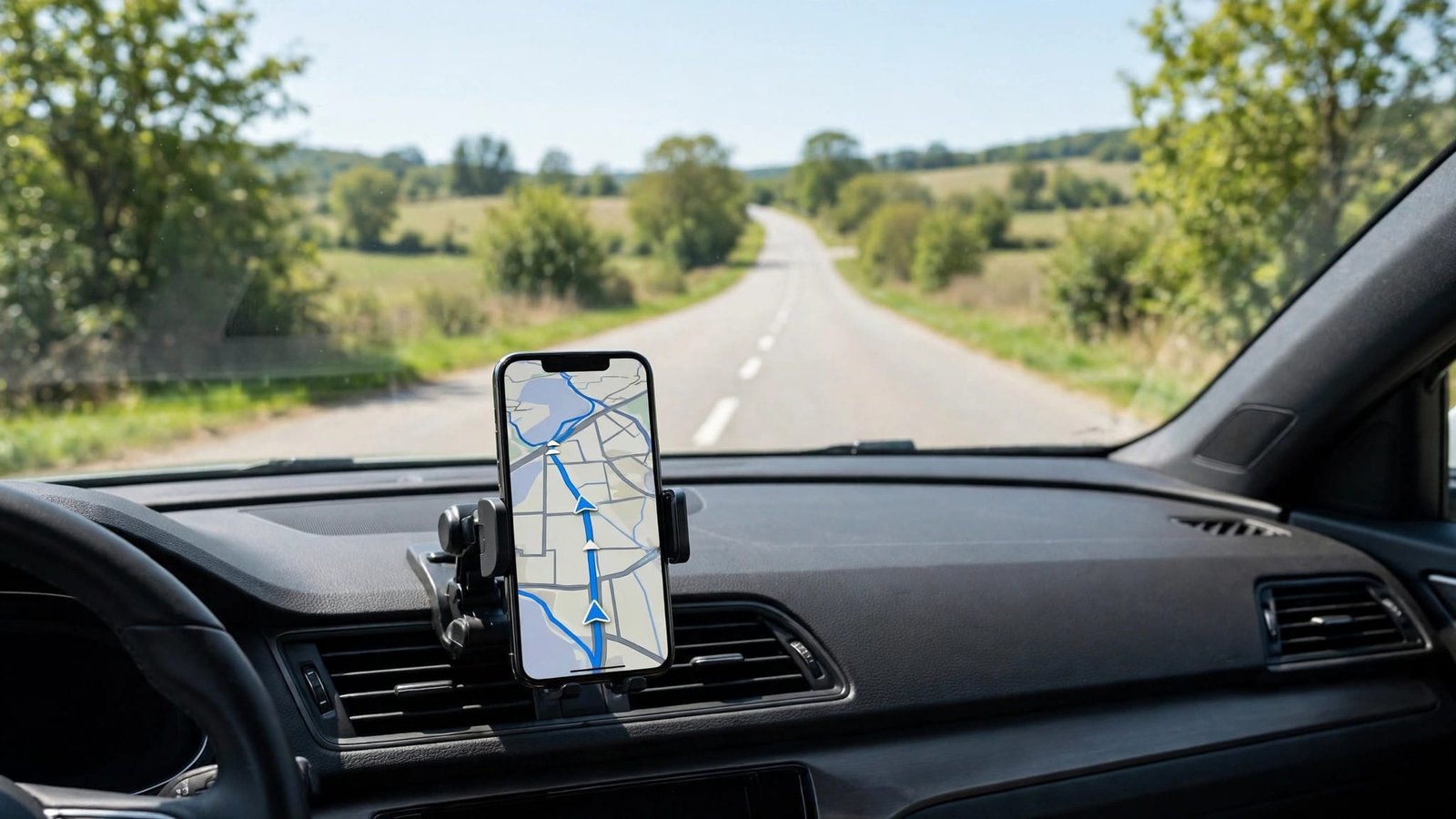
Your phone is the worst passenger you could ask for: it buzzes, lights up, and begs for attention exactly when your eyes should be on the road. Android driving mode exists to fix that — muting distractions, surfacing only navigation, calls, and music, and letting your voice do the work. The confusing part is that “driving mode” has meant several different things over the years, and Google has reshuffled its driving features more than once.
This guide explains what Android driving mode is today, how it differs from Android Auto, and how to set up a genuinely hands-free car experience on Pixel and Samsung phones.
What Is Android Driving Mode?
In its current form, driving mode is a phone state that activates when Android detects you are driving — usually by connecting to your car’s Bluetooth or by sensing vehicle motion — and automatically applies a set of driving-friendly behaviors:
- Do Not Disturb turns on, silencing all but the calls and contacts you allow.
- Notifications are held back or announced only in limited, voice-friendly ways.
- A simplified interface or your navigation app comes to the front, depending on brand.
- Voice control takes priority, so requests are handled by talking rather than tapping.
The concept has evolved. Google previously offered a full-screen “Assistant driving mode” dashboard on the phone itself, which replaced the old Android Auto for phone screens experience. Google later wound that dashboard down, and with Google Assistant itself now retired in favor of Gemini, the driving experience today is built from three pieces: the driving mode settings on your phone, Android Auto when your car supports it, and Gemini voice control everywhere else — the same assistant landscape we explain in our look at whether Android phones have Siri.
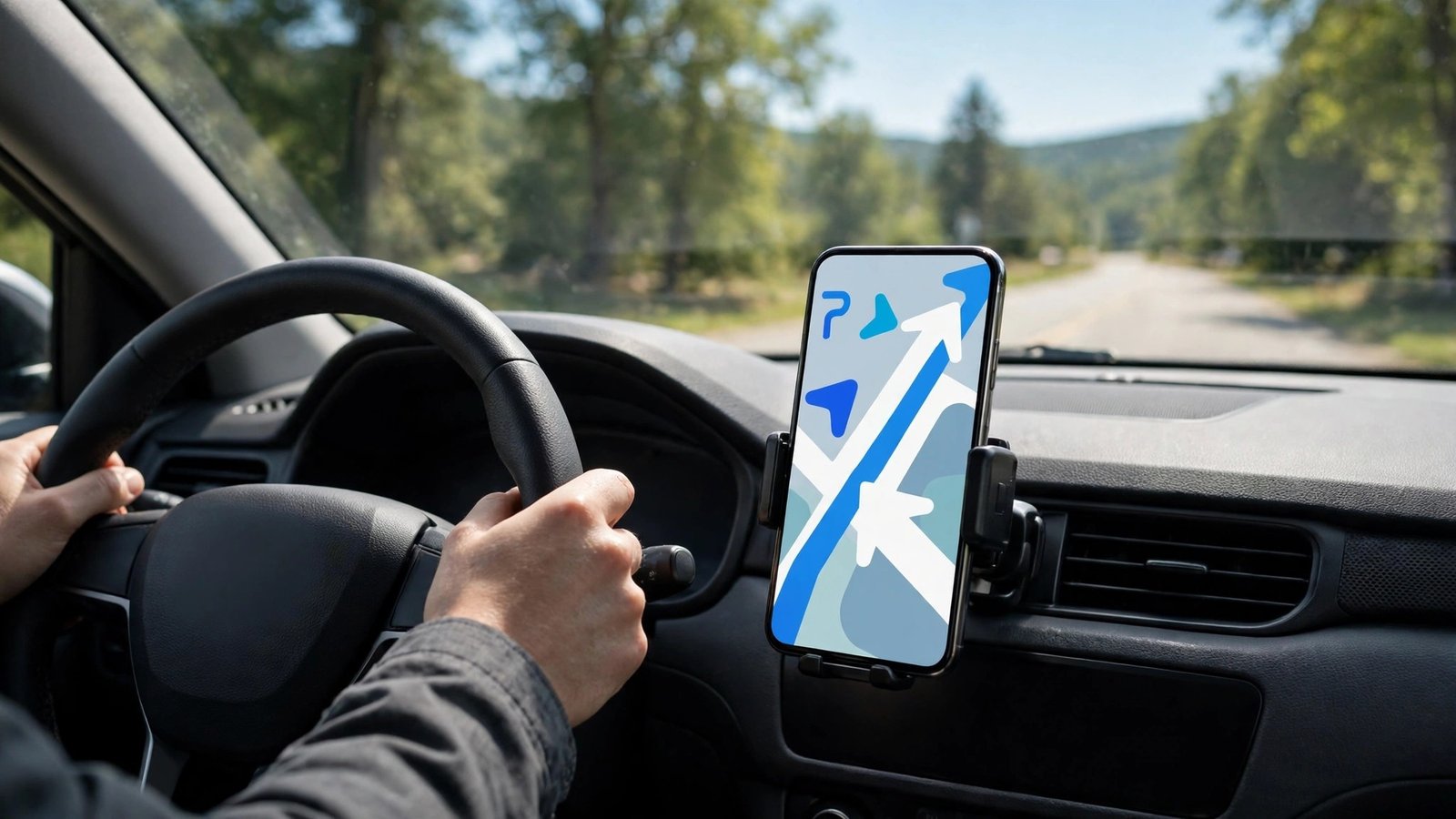
Car Mode in Android: The Names You Will Meet
Part of the confusion is vocabulary. “Car mode” in Android can refer to four related but different things:
- Driving mode (Pixel and stock Android): a system setting that detects driving and enables Do Not Disturb, found under Connected devices settings.
- Driving mode (Samsung Modes and Routines): a preset mode that can trigger from car Bluetooth and bundle actions like Do Not Disturb, reading notifications aloud, and opening your maps or music app.
- Android Auto: Google’s platform that projects a simplified interface onto your car’s display while the phone does the work — described in more detail below and on Google’s Android Auto page.
- Legacy “Car mode”: older phones (notably older Samsung and HTC models) had a literal Car Mode app with giant buttons. It is long discontinued, but the name still appears in old help articles and forum posts.
When a guide or setting mentions car mode in Android today, it almost always means one of the first three.
How to Set Up Driving Mode on a Pixel
- Open Settings > Connected devices > Connection preferences > Driving mode.
- Turn on Use Driving mode.
- Choose how it activates: Android can detect driving automatically using motion and Bluetooth, or start when it connects to a specific car Bluetooth device — the more reliable option if you regularly ride as a passenger (automatic motion detection cannot tell the driver from a passenger).
- On the same screen, review what turns on with it: Do Not Disturb is the core behavior, and you can customize which calls and messages are allowed through in the Do Not Disturb settings.
Tip: add your car as the Bluetooth trigger and let passengers keep their freedom — their phones will not detect “driving” just because yours did. While you are in the Driving mode screen, also look for the option to have the mode ask before turning on: some drivers prefer a one-tap confirmation prompt when motion is detected, which prevents false starts on trains and buses while keeping the setup nearly automatic.
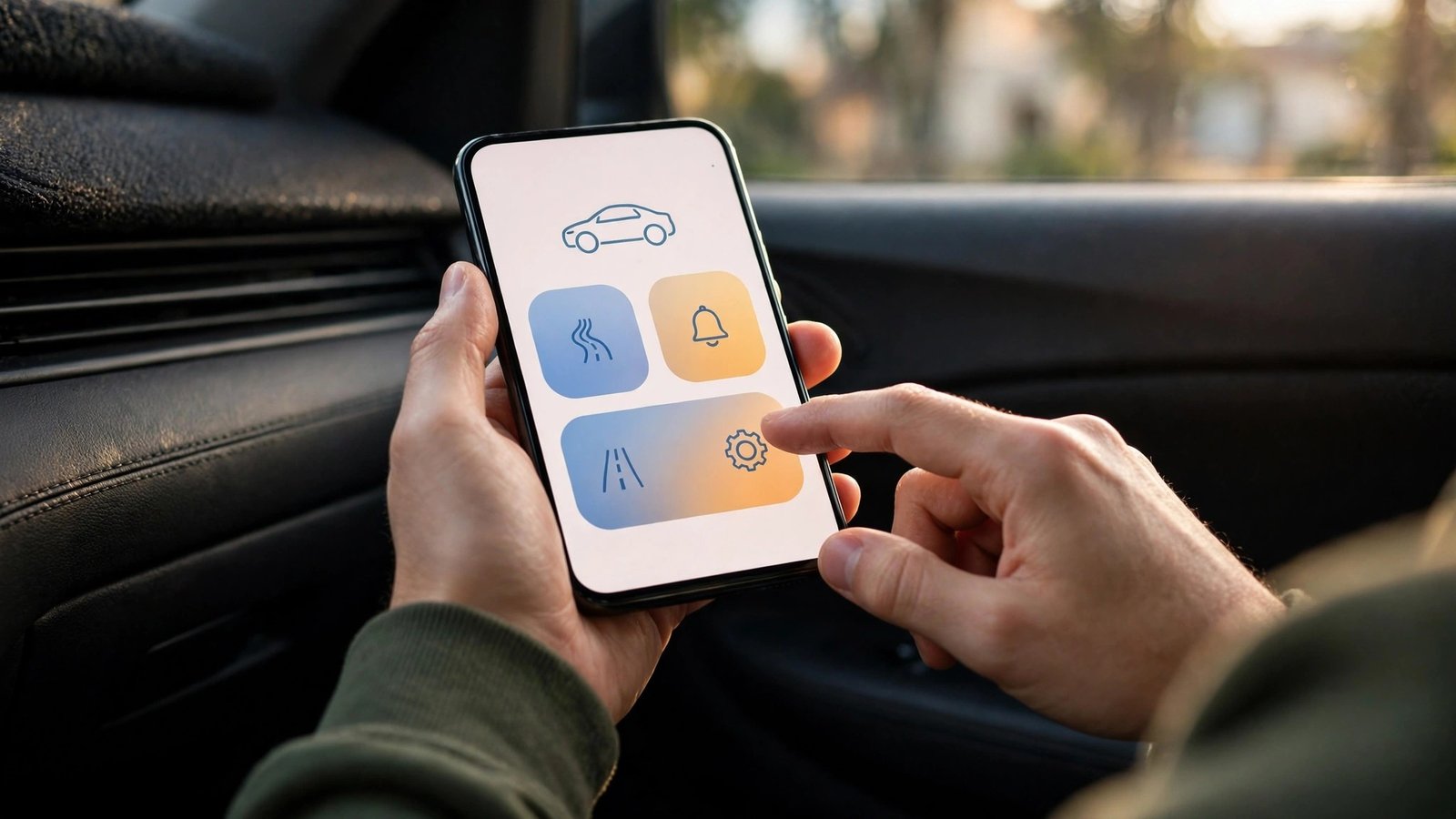
How to Set Up Driving Mode on a Samsung Galaxy
Samsung builds driving behavior into its Modes and Routines system:
- Open Settings > Modes and Routines.
- Select the preset Driving mode (or create a routine of your own).
- Set the trigger — connecting to your car’s Bluetooth is the most dependable.
- Choose the actions: turn on Do Not Disturb, read notifications aloud so Bixby can announce messages, open Google Maps or your music app automatically, and keep the screen in a driving-friendly state.
- Decide who can interrupt: allow calls from favorites or repeat callers so genuinely urgent calls still reach you.
Samsung’s approach is more customizable than Google’s, at the cost of a few more setup minutes. Once configured, it starts and stops with the car, completely hands-free.
Driving Mode vs. Do Not Disturb: What Is the Difference?
People often ask why they need driving mode when Do Not Disturb already exists. Do Not Disturb is a single behavior — silencing interruptions — that you switch on manually or on a schedule. Driving mode is a detector plus a bundle: it notices that driving has started, then applies several behaviors at once, and just as importantly, it undoes them when the trip ends. That automatic on-and-off is the entire point. A manual Do Not Disturb habit fails on exactly the trips where it matters — the rushed ones, where flipping a toggle is forgotten.
The bundle also goes beyond silence. Depending on the brand, driving mode can launch your navigation or music app, switch the phone to reading notifications aloud, suggest replies you can send with one voice command, and (in Android Auto) hand the whole interface to the car’s display. Think of Do Not Disturb as one instrument, and driving mode as the orchestra conductor who knows when the performance starts.
Using Driving Mode Without a Car Dashboard
Not every driver has Android Auto in the dashboard, and driving mode still earns its place. On an older car, the winning combination is a phone mount, driving mode’s automatic Do Not Disturb, your maps app of choice, and voice control for everything else — calls, messages, and music are all manageable without touching the screen. The same setup serves motorcyclists (where a glance away is even riskier) and works for passengers too, though passengers should simply leave driving detection off or use Bluetooth-only triggering so their phone does not silence itself on every train and bus ride. Delivery and rideshare drivers, who live in their cars, benefit most of all: pairing driving mode with per-app notification controls keeps work pings flowing while personal noise stays muted.
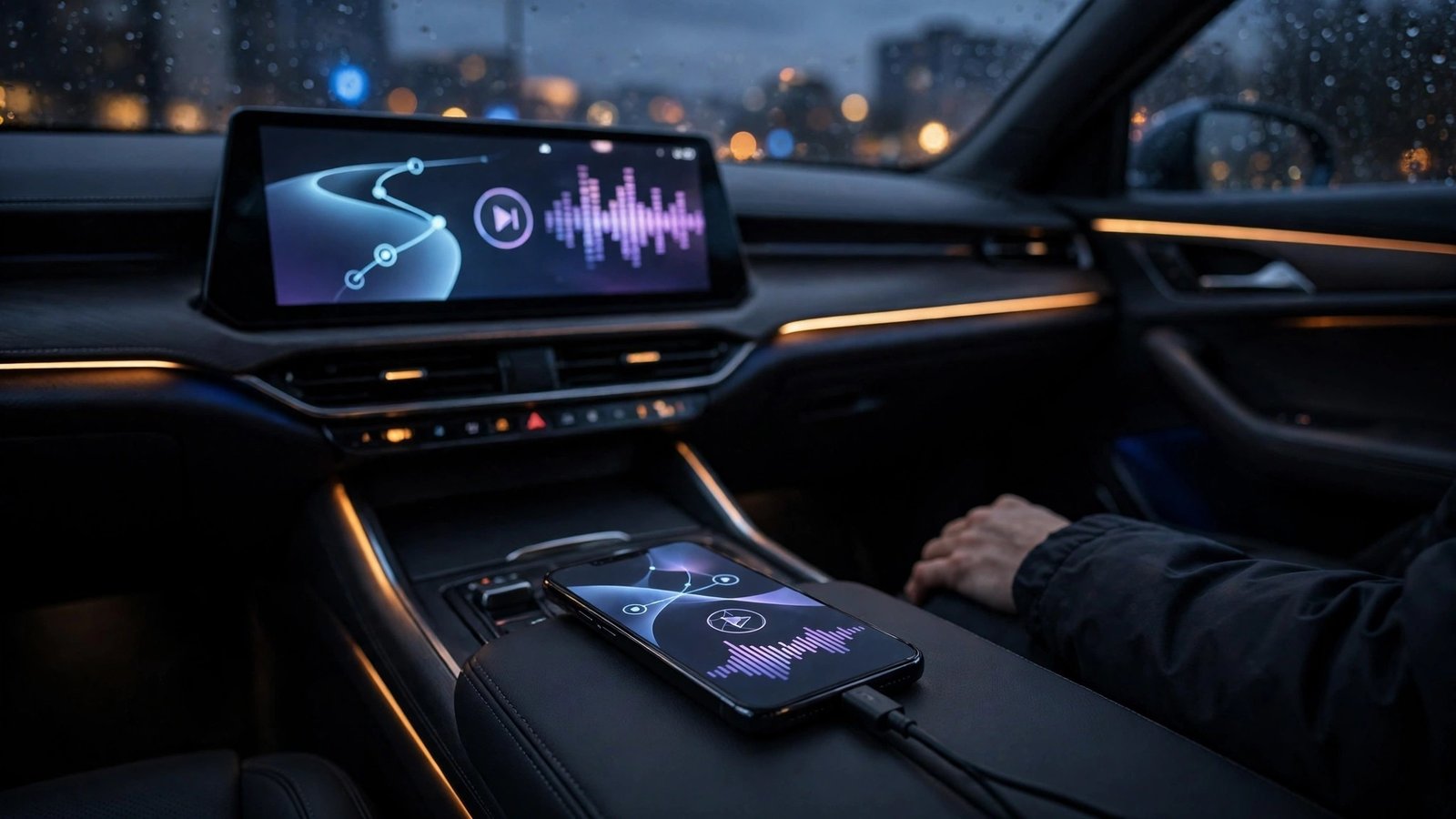
Android Auto: The Full Car Experience
If your car has a compatible display, Android Auto is the best version of driving mode, because it moves everything to the car’s big screen: navigation with live traffic, calls, messages read aloud and answered by voice, and media controls designed for quick glances rather than prolonged stares at a small phone screen. Most cars connect by USB cable; many newer ones support wireless Android Auto.
With Gemini now serving as the in-car assistant on Android Auto, you can ask for directions, send a message, or get a summary of a long group chat without touching anything. Auto also restricts the phone itself while connected, which closes the “I’ll just check at this light” loophole.
Tips for a Safer, Smarter Setup
- Mount the phone properly. If you use the phone screen for navigation, a vent or dash mount at eye level is safer and, in many states, legally required compared with holding the phone.
- Set your destination before you move. Every driving mode works better when navigation starts before the wheels do.
- Curate your allowed contacts. Do Not Disturb is only useful if the people who might genuinely need you — family, your child’s school — can still get through.
- Download offline maps for areas with weak coverage, so navigation never stalls mid-route. Offline maps are among the most practical tricks in our Android tips and tricks collection.
- Keep the software current. Driving features have changed rapidly in recent Android versions; phones current with the Android 16 download and its successors handle the Assistant-to-Gemini transition cleanly.
Frequently Asked Questions
How do I turn on driving mode on Android?
On Pixel: Settings > Connected devices > Connection preferences > Driving mode. On Samsung: Settings > Modes and Routines > Driving. On other brands, search Settings for “driving.”
Does driving mode turn on automatically?
It can. Both Pixel and Samsung can trigger it from your car’s Bluetooth connection, and Pixel can also detect driving from motion. Bluetooth triggering is more accurate because motion detection cannot tell whether you are driving or riding.
What happened to Google Assistant driving mode?
Google discontinued the standalone Assistant driving mode dashboard, and Google Assistant itself has since been replaced by Gemini across Android and Android Auto. The core functions — Do Not Disturb, voice control, simplified navigation — now live in the driving mode settings and Android Auto described above.
What is the difference between driving mode and Android Auto?
Driving mode changes how your phone behaves while you drive. Android Auto projects a driving interface onto your car’s screen. They complement each other; many drivers use both.
Can driving mode read my messages aloud?
On Samsung, yes — the Driving mode can read notifications aloud. On Pixel and in Android Auto, Gemini/your assistant can read incoming messages aloud on request and let you reply by voice.
Conclusion
Android driving mode is less a single feature than a toolkit: automatic Do Not Disturb, Bluetooth-triggered routines, Android Auto on the car screen, and Gemini handling your voice requests. Spend ten minutes configuring triggers and allowed contacts on your Pixel or Samsung phone today, and the phone stops competing for your attention at exactly the moments it matters most — which was the whole point of car mode all along.
