
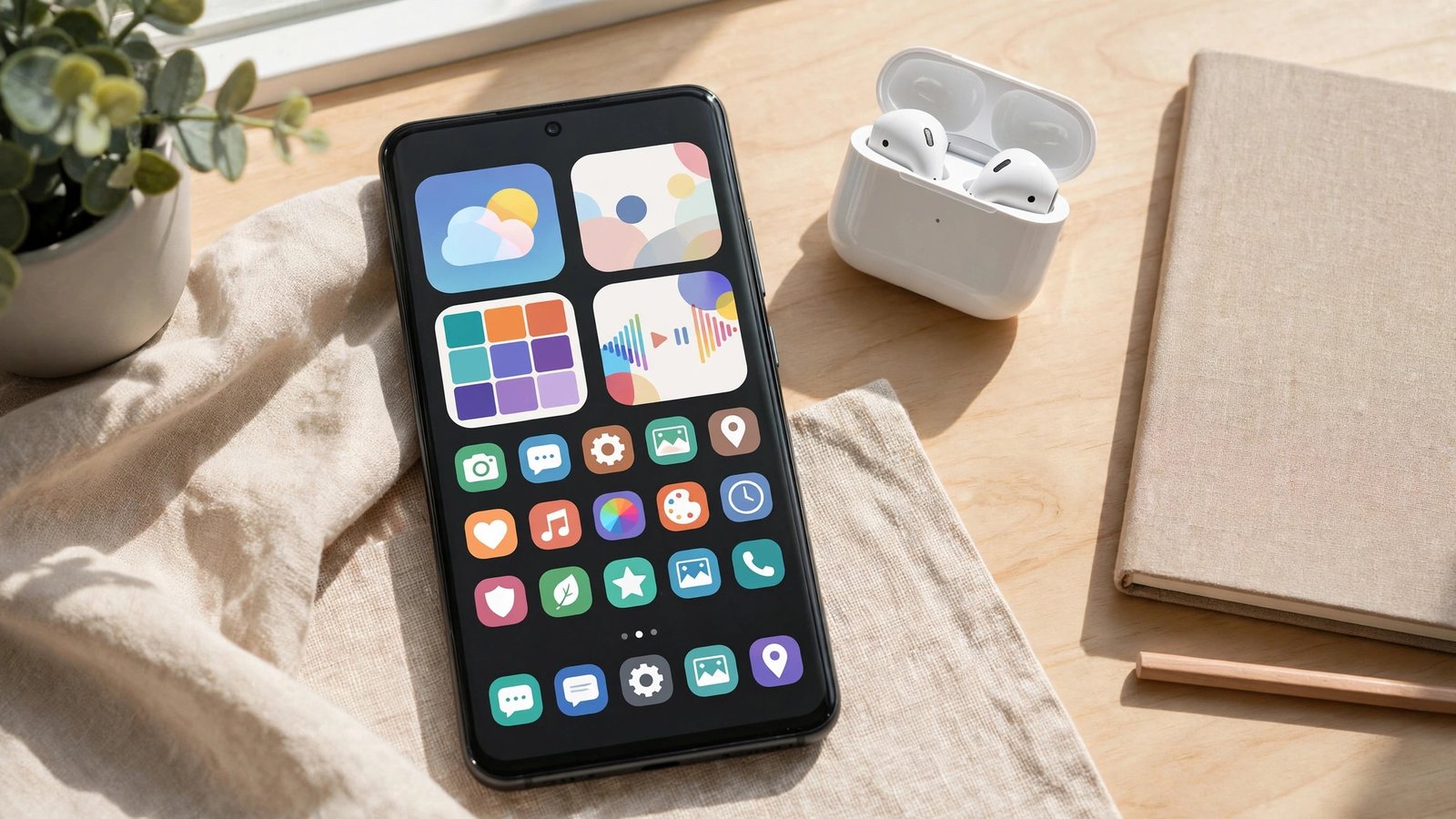
Your Android phone can do far more than it shows you out of the box. Buried in its settings are shortcuts, automation tools, and display options that most owners never touch, yet they can shave minutes off everyday tasks. This guide collects the most useful android tips and tricks in one place, from quick everyday tweaks to a full desktop mode hiding inside newer phones.
Whether you use a Samsung Galaxy, a Google Pixel, or a budget Motorola, most of these features work the same way. A few need newer software, and those are labeled clearly. If you are also hunting for fresh software to install, our roundup of the best android apps 2026 is a good place to start.
Tips Android Owners Usually Miss
Some of the handiest tips android phones offer sit in plain sight. Notification history is a perfect example. If you have ever swiped away an alert by accident, open Settings > Notifications > Notification history (on Android 11 and later) and turn it on. From then on, your phone quietly keeps a log of dismissed notifications, so nothing important disappears forever.
A few more worth switching on today:
- Split-screen multitasking: Open the recent apps screen, tap the icon above an app, and choose split screen. You can watch a video while replying to a message.
- One-handed mode: On many phones, Settings > Advanced features or System > Gestures lets you shrink the screen toward your thumb with a quick swipe or double tap.
- App pinning: Pin an app from the recent apps screen so a friend borrowing your phone cannot wander into your photos or email.
- Clipboard and keyboard shortcuts: In Gboard, pin copied items you paste often, like your address, so they are always one tap away.
Keeping your home screens tidy makes all of this faster to reach. If your app drawer feels like a junk drawer, an app to organize apps android users rely on can group everything into smart folders automatically.
Android Auto Hacks for a Smarter Drive
The best android auto hacks are not really hacks at all. They are settings Google includes but tucks away on your phone rather than your car screen. Open Settings > Connected devices > Connection preferences > Android Auto (the exact path varies slightly by brand) to find them.
Start with the launcher. Tap Customize launcher and drag your most-used apps, such as maps, podcasts, and messages, to the top. Uncheck apps you never use while driving so the car display stays clean. Next, turn on Start Android Auto automatically so the interface launches the moment your phone connects, without you touching anything.
Other small changes that pay off on every trip:
- Split-screen view: On widescreen car displays, Android Auto’s Coolwalk layout shows maps beside media and message cards. Resize the split from the dashboard if your car supports it.
- Wireless connection: Wireless Android Auto needs a compatible car or head unit and a phone with 5 GHz Wi-Fi. If yours supports it, enable Add wireless projection once and cable-free trips become the norm.
- Message and call shortcuts: Add favorite contacts to the launcher so calling home takes one tap, and let Google Assistant read incoming messages aloud instead of glancing at the screen.
Keep safety first. Set everything up while parked, and let voice commands handle the rest once you are moving.
Google Android Desktop Mode Turns Your Phone Into a PC
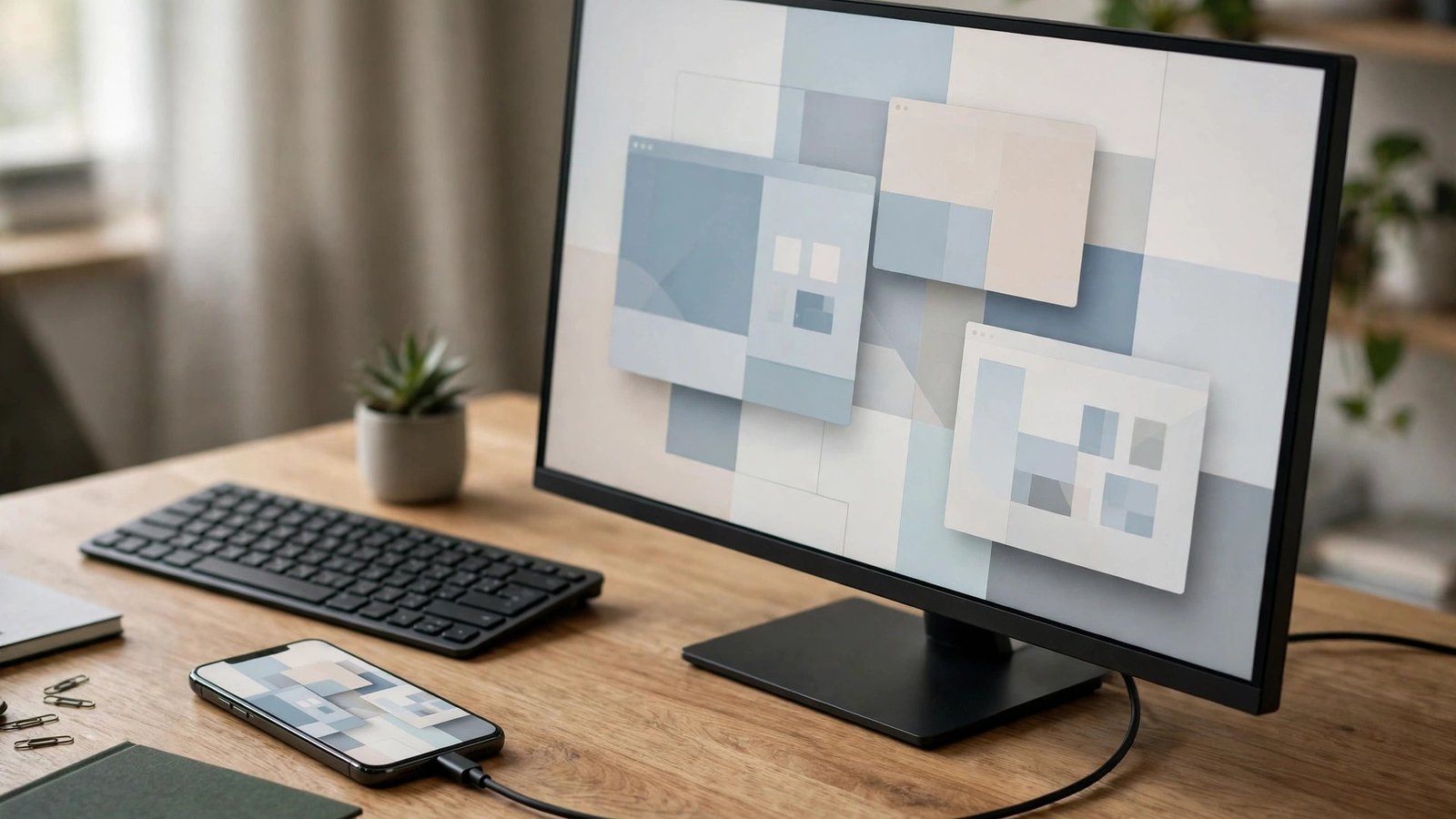
One of the most surprising recent additions is the google android desktop mode experience. On supported phones running Android 16, including recent Pixel models and many Samsung Galaxy devices, connecting your phone to an external monitor with a USB-C cable opens a desktop-style session on that screen. You get a taskbar, resizable app windows you can drag and snap side by side, and a mouse-and-keyboard workflow that feels close to a lightweight laptop.
Google built this desktop windowing experience together with Samsung, whose DeX feature pioneered the idea on Galaxy phones. On a Samsung device you may see DeX offered instead, and the two experiences are similar: your phone keeps working normally while the monitor shows the desktop session.
To try it, connect a USB-C cable from your phone to a monitor that supports DisplayPort over USB-C, or use a small USB-C hub. On some phones the desktop option appears automatically; on others you may need to enable the desktop experience in Developer options first. It will not replace a full computer for heavy video editing, but for email, documents, web apps, and video calls it is genuinely useful, especially when traveling light.
Move the Chrome Android Bottom Bar Within Reach
Large phone screens make the top of the display hard to reach one-handed, which is why the chrome android bottom bar option is so popular. Chrome for Android now lets you move the address bar to the bottom of the screen, right under your thumb.
There are two ways to do it:
- Touch and hold the address bar, then tap Move address bar to the bottom.
- Or open Chrome’s menu, go to Settings > Address bar, and choose Bottom.
Once the bar sits at the bottom, you also gain a handy gesture: swipe sideways across the address bar to jump between open tabs without opening the tab switcher. Note that the bottom layout works in portrait mode; rotate to landscape and the bar returns to the top. If you do not see the setting yet, update Chrome from the Play Store, since Google rolled the option out gradually. Google’s own Android documentation and version history is a useful reference for which features arrived in each release.
Best Apps to Personalize Your Android
The best apps to personalize your android are the ones that change how the phone feels every single day, not just its wallpaper. A custom launcher is the biggest upgrade. Nova Launcher, for example, lets you resize icons, add gestures, hide apps, and back up your whole layout, and it works on almost any phone.
From there, layer in smaller touches:
- Icon packs from the Play Store give every app a matching style in one tap when paired with a launcher.
- KWGT lets you build your own home-screen widgets, from weather clocks to calendar panels, with no coding.
- Wallpaper apps such as Backdrops and Zedge rotate fresh backgrounds and ringtones on a schedule.
- System-wide dark themes reduce eye strain at night; our guide to android dark mode settings walks through scheduling it automatically.
Personalization is also practical. A well-arranged home screen with your top five apps and a calendar widget can save dozens of small scrolls every day.
Android 9.0 Settings Worth Knowing on Older Phones
Millions of budget and backup phones still run older software, and the android 9.0 settings menu hides several features that were headline news when Android 9 Pie launched in August 2018. If you or a family member uses one of these devices, these settings still make a real difference.
- Adaptive Battery: In Settings > Battery, this feature learns which apps you use and limits background power for the rest. Adaptive Brightness in Settings > Display does the same learning for your screen.
- Gesture navigation: In Settings > System > Gestures on many Pie phones, you can swap the three buttons for a single pill you swipe up to see recent apps.
- Digital Wellbeing: Found directly in Settings on most Pie devices, it shows screen-time stats, app timers, and a Wind Down mode that fades the screen to grayscale before bed.
- Private DNS: In Settings > Network & internet > Advanced > Private DNS, enter a trusted hostname such as dns.google for encrypted DNS lookups.
- Lockdown mode: Enable it under lock screen settings, and a long-press of the power button lets you instantly hide notifications and disable fingerprint unlock.
Mistakes to Avoid While Tweaking Your Phone
A few habits cause more problems than all the tips above can fix. Avoid installing APK files from random websites; stick to the Play Store and known developers so you do not invite malware in. Be careful with cleaner and booster apps that promise impossible speed gains, since many only show ads and close apps your phone then has to reload.
Also think twice before granting every permission a new app requests. A flashlight app does not need your contacts. Finally, do not skip system updates to save a few minutes. Those updates patch security holes, and on modern phones they install quietly overnight if you let them.
Frequently Asked Questions
Do these tips work on every Android phone?
Most do, because they rely on core Android features. Menu names differ slightly between Samsung, Pixel, and other brands, so use the search box at the top of Settings if a path in this guide does not match exactly.
What is the easiest tip for saving battery?
Turn on Adaptive Battery and Adaptive Brightness, then check Settings > Battery > Battery usage to find apps draining power in the background. Restricting one badly behaved app often helps more than any other change.
Is desktop mode the same as Samsung DeX?
They are close cousins. Google and Samsung worked together on Android’s desktop windowing, and DeX remains Samsung’s own polished version. Supported Galaxy phones may offer DeX, while Pixels use Android’s built-in desktop mode.
Can I move the Chrome address bar back to the top?
Yes. Long-press the address bar and choose the top option, or return to Settings > Address bar in Chrome and select Top. The change is instant and reversible.
Are personalization apps safe to use?
Well-known launchers and widget tools from the Play Store are generally safe. Check recent reviews, download counts, and requested permissions, and avoid look-alike apps with almost no history.
Conclusion
Your phone already contains most of what it needs to feel faster and more personal. Start with notification history, the bottom Chrome bar, and a tidy launcher setup, then explore desktop mode or Android Auto’s hidden settings when you are ready. Small changes like these add up to a phone that works the way you do.
