
Dark mode went from a nice-to-have to a feature most Android owners refuse to give up — and it is easy to see why. White screens glare at night, dark interfaces look calmer, and on the OLED displays fitted to most modern phones they can genuinely sip less power. The catch is that Android dark mode settings live in slightly different places depending on who made your phone, and a handful of apps and schedules can make the feature seem broken when it is really just misunderstood.
This guide walks through where the settings are on Pixel, Samsung, and other major brands, how to schedule dark mode so you never toggle it again, what to do about apps that refuse to go dark, and the mistakes that make dark mode turn itself off.
What the Dark Mode Setting Actually Controls
Android’s dark theme is a system-wide setting. When it is on, Android redraws its own surfaces — Settings, the notification shade, Quick Settings, the app drawer on Google’s phones — with dark backgrounds, and it signals every app that you prefer a dark appearance. Apps that support dark theme (most major ones now do) switch automatically. Under the hood, this is exactly the mechanism Google documents for developers in its dark theme guide: the system flips a configuration flag, and well-built apps respond to it.
Two things the master setting does not do: it cannot force an app that was never designed with a dark theme to become dark (more on workarounds below), and it does not change photos, videos, or web pages that have their own fixed colors — though browsers like Chrome can apply their own dark treatment to websites when asked.
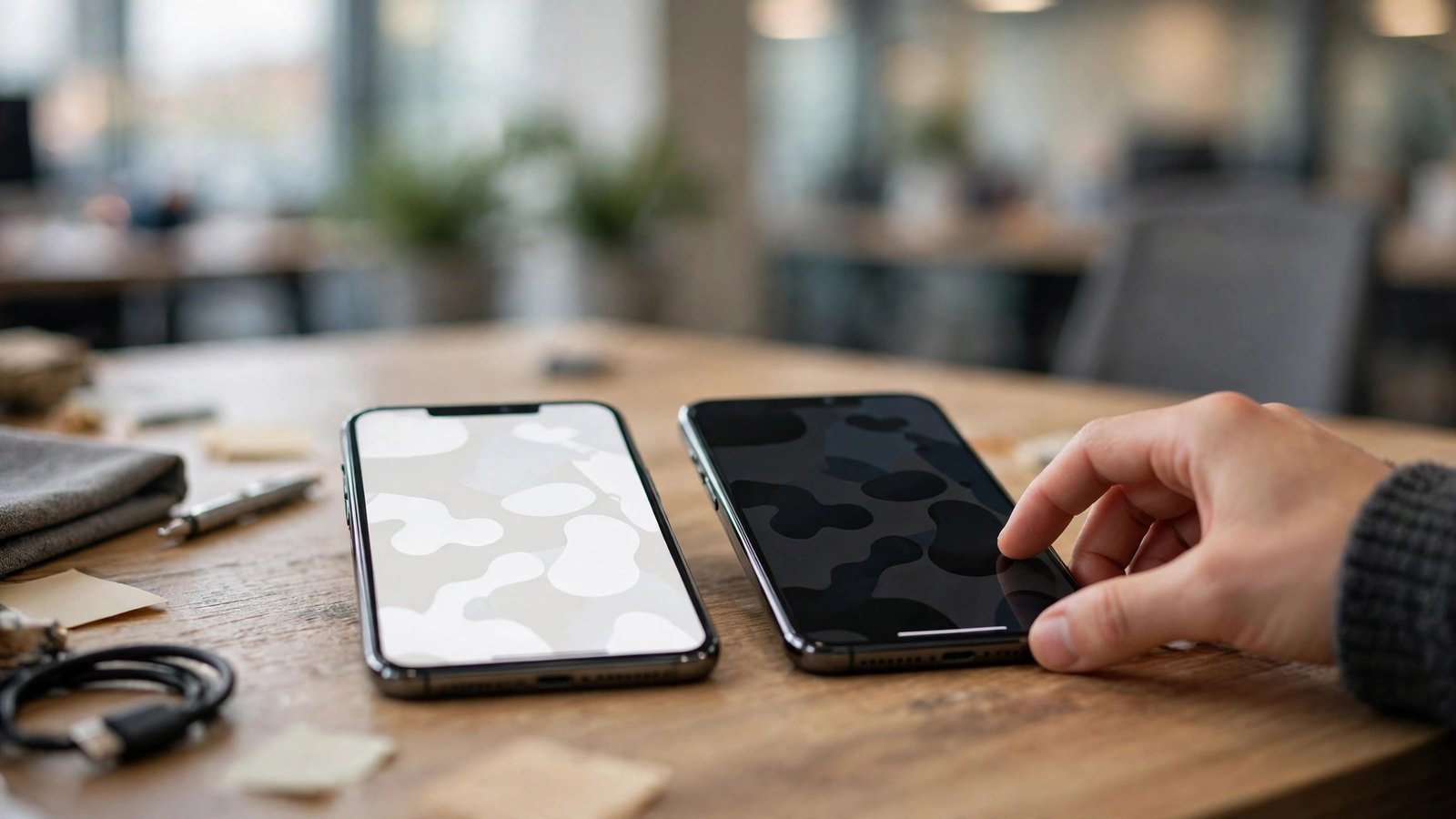
Turn On Dark Mode on Pixel and Stock Android
- Open Settings.
- Tap Display & touch (on some versions, simply Display).
- Tap Dark theme and switch it on.
On Google’s own phones, this single switch also drives Pixel Launcher dark mode, so your app drawer and search bar change along with the system menus.
Turn On Dark Mode on Samsung Galaxy Phones
Samsung places the option one level higher:
- Open Settings.
- Tap Display.
- Tap Dark at the top of the screen, next to Light.
- For scheduling, tap Dark mode settings on the same screen, where you can enable Turn on as scheduled — either sunset to sunrise or a custom schedule.
Samsung also lets its Modes and Routines feature toggle dark mode automatically — for example, as part of a Sleep mode — which is worth knowing if your phone seems to change themes on its own schedule (see the troubleshooting section below).
Turn On Dark Mode on Other Brands
- OnePlus: Settings > Display & brightness > Dark mode, with scheduling and per-app options on some models.
- Motorola: Settings > Display > Dark theme; Motorola’s Moto app also surfaces it under personalization.
- Xiaomi/Redmi/POCO: Settings > Display > Dark mode, with a sunrise/sunset schedule and per-app dark mode controls in MIUI/HyperOS.
- About the same: if you cannot find it, use the search bar at the top of Settings and type “dark” — every modern Android phone surfaces the toggle this way.
The Fastest Switch: The Quick Settings Tile
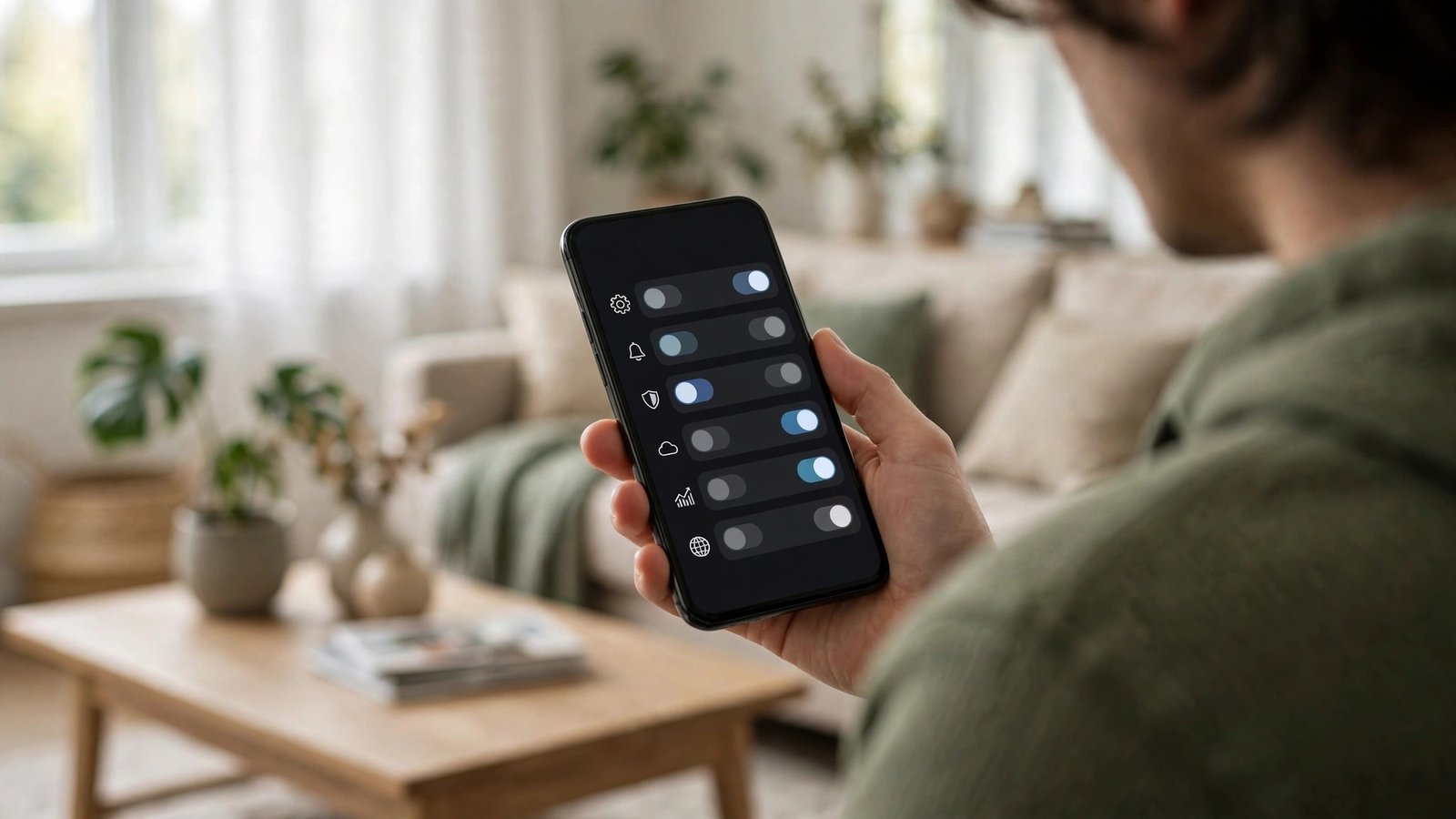
Whatever your brand, you rarely need the Settings app at all. Swipe down twice to open the full Quick Settings panel and tap the Dark theme (or Dark mode) tile to flip the setting instantly. If the tile is not visible, tap the edit/pencil icon and drag it in from the inactive tiles. This is the method to use for one-off situations — a dark theater, a night drive — where you do not want to change your permanent setup.
Scheduling: Set It Once, Forget It Forever
The schedule is the most underused part of the Android dark mode settings. On the Dark theme screen you will typically find:
- Sunset to sunrise — dark mode follows your local daylight, using your location. The most popular choice, and the one we recommend.
- Custom time — fixed start and end times, useful if your routine does not follow the sun.
- Bedtime (Pixel and some others) — dark mode follows your Digital Wellbeing bedtime schedule.
A schedule explains most “my phone changed its theme by itself” mysteries: it is doing exactly what it was told to do. Pick one schedule and leave the manual toggle for exceptions. If you travel across time zones, the sunset option adjusts itself to your new location automatically.
Apps That Stay Light — and What You Can Do
If an app ignores the system setting, try these in order:
- Check the app’s own settings. Many apps — messaging, social, and reading apps especially — have their own theme option set to “Light” buried in their settings, overriding the system. Set it to “System default.”
- Update the app. Dark theme support has been added to thousands of apps over the last few years; an old version may simply predate it.
- Use the browser version. For services with poor apps, the website in Chrome with Chrome’s own dark mode (Chrome settings > Theme) can be easier on the eyes.
- Last resort: developer options. Stock Android hides an “Override force-dark” switch in Developer options that attempts to darken light-only apps automatically. Results are hit-or-miss — photos and images can invert oddly — so treat it as an experiment, not a solution, and turn it back off if anything looks wrong.
Per-App Dark Mode: Samsung and Xiaomi Go Further
The standard Android setting is all-or-nothing, but some manufacturers add finer control. Samsung’s One UI and Xiaomi’s MIUI/HyperOS both include per-app dark mode lists (on Xiaomi, under Settings > Display > Dark mode > individual apps; Samsung exposes related options in its display and Labs settings, varying by model). These lists let you pick which apps get a forced dark treatment even when the app itself lacks one, using the manufacturer’s own rendering adjustments. Results vary by app — most look fine, a few show odd colors in images — so treat the per-app switch as a per-app experiment and keep the ones that look right.
Dark Mode in Chrome and on Websites
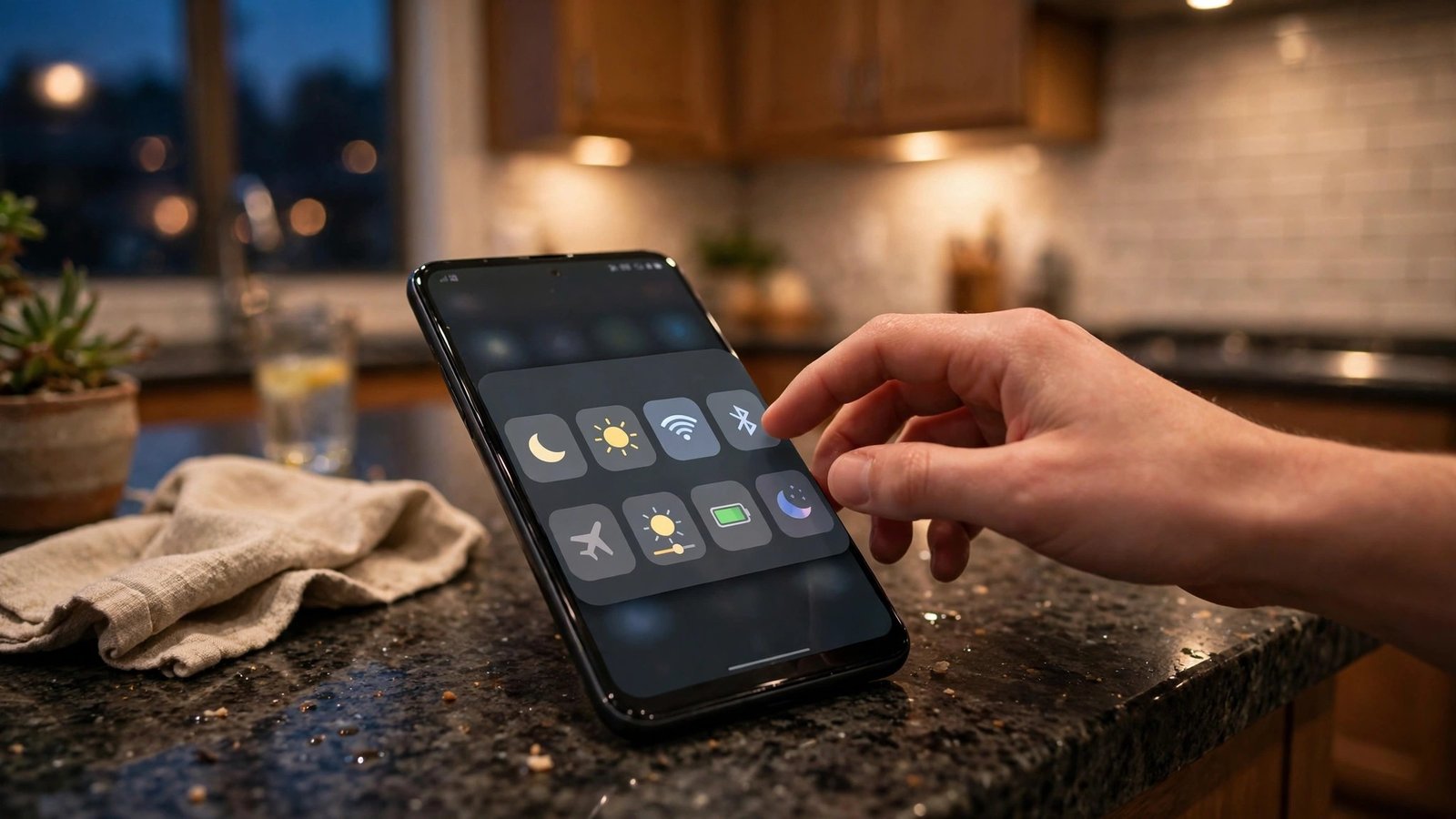
Your browser is a special case, because a system theme cannot repaint someone else’s web page. Chrome on Android handles it in two layers: the browser’s own interface (toolbars, menus, the new-tab page) follows Chrome’s theme setting — Chrome > Settings > Theme, where you can pick Light, Dark, or System default — and Chrome can optionally darken web content itself on some versions via its “darken websites” behavior tied to the system theme. If a specific site still blazes white at night, look inside the site itself: many large sites and web apps now offer their own dark toggle, usually in a profile or settings menu, which is the most reliable fix for that one site.
Does Dark Mode Really Save Battery?
On phones with OLED or AMOLED screens — nearly all Samsungs, Pixels, and most mid-range and flagship phones — dark pixels draw significantly less power than lit ones, so dark mode produces real battery savings, largest at high screen brightness. Phones with LCD screens light the whole panel regardless of what is shown, so dark mode there is purely a comfort feature. Either way, comfort alone is a fine reason: less glare at night is the benefit most users actually notice. Combining dark mode with the other tweaks in our Android tips and tricks guide can stretch a day noticeably further.
Troubleshooting: Dark Mode Keeps Turning Off (or On)
- A schedule is active. Check the Dark theme screen for sunset/custom/bedtime scheduling before anything else.
- Battery saver is interfering. Some phones link dark theme to battery saver, enabling or disabling it at low battery.
- A routine is toggling it. Samsung Modes and Routines, and similar automation on other brands, can switch dark mode when a mode activates.
- The phone just updated. Major updates occasionally reset display preferences; while you are re-checking settings, confirming you are current with the Android 16 download rollout for your model is worthwhile.
- One app looks wrong. That is the app’s own theme setting, not the system’s — see the app section above.
Frequently Asked Questions
Where are the dark mode settings on Android?
Settings > Display (or Display & touch) > Dark theme / Dark mode on virtually every brand. If in doubt, search Settings for “dark.”
Why do some apps stay white in dark mode?
Either the app has no dark theme, or its in-app theme setting is locked to Light. Check the app’s own settings for a theme option and set it to follow the system.
Is dark mode better for your eyes?
It reduces glare in dim environments, which most people find more comfortable at night. In bright light, light mode is often easier to read. Neither is medically “better” in general — use what feels comfortable, and consider a sunset schedule.
Does dark mode work on Android 9 and older?
A full system dark theme arrived with Android 10. On Android 9, some manufacturers (including Samsung with its Night mode) offered their own version; older phones rely on per-app settings.
Can I set different schedules for weekdays and weekends?
Not with the built-in Android setting, which uses one schedule. Samsung owners can approximate it with two Modes and Routines automations.
Conclusion
Android dark mode settings reward five minutes of setup: turn dark theme on in Display settings, add the Quick Settings tile for quick flips, and set a sunset schedule so the phone handles evenings by itself. Fix stubborn apps through their own theme menus, blame unexpected theme changes on schedules and routines rather than bugs, and enjoy the calmer screen — and, on OLED phones, the small but real battery bonus that comes with it.
