
If you use your Pixel at night, the blast of white from the app drawer gets old fast — which is why so many owners go looking for a Pixel Launcher dark mode setting. Here is the twist: the Pixel Launcher does not have its own dark mode switch. Instead, the launcher follows your Pixel’s system-wide dark theme, and once you know where that setting lives, you can turn the whole home-screen experience dark in seconds, schedule it to happen automatically at sunset, and even make your app icons match.
This guide covers exactly how to do it, the finishing touches most people miss, and what to check when the launcher refuses to go dark.
What “Pixel Launcher Dark Mode” Actually Means
When dark theme is active on a Pixel, the parts of the interface the Pixel Launcher controls all switch to dark backgrounds:
- The app drawer changes from white to dark gray.
- The Google search bar at the bottom of the home screen goes dark.
- Folders on the home screen and the At a Glance widget adopt the dark styling.
- The swipe-left Google Discover feed switches to its dark appearance.
- The Quick Settings panel and notifications shade — technically system UI, but part of the same visual experience — go dark too.
Apps themselves are separate: each app decides whether to honor the system theme, and most popular apps do. If you want the bigger picture on how dark mode spread from a niche preference to a standard feature on every platform, Wikipedia’s overview is a good read — the Pixel Launcher is simply one of the most visible surfaces that responds to it.
There is also a bit of history here. On the Pixel 2 and Pixel 3, the launcher’s theme was chosen automatically from your wallpaper: a dark wallpaper produced a dark app drawer, a bright wallpaper a light one, with no manual control at all. Users asked for a switch, and Google delivered one by tying the launcher to the system dark theme setting.
How to Turn On Dark Mode for the Pixel Launcher
- Open Settings.
- Tap Display & touch.
- Tap Dark theme.
- Switch it On.
That’s it — press Home and open your app drawer, and the launcher is dark. The change is instant and reversible, so feel free to try it in daylight too; plenty of Pixel owners leave dark theme on permanently simply because they prefer the calmer, more modern look it gives the phone all day long. This is the same master switch covered in our broader guide to Android dark mode settings on other brands, though the menu names differ slightly there.
Schedule Dark Mode Automatically
Turning dark theme on and off by hand twice a day gets tiresome. On the same screen (Settings > Display & touch > Dark theme), tap Schedule and choose:
- Turns on at custom time — pick your own start and end times.
- Turns on from sunset to sunrise — the most popular option; it uses your location to match local sunset. Make sure Location is enabled for it to work accurately.
- Turns on at bedtime — ties dark theme to your Digital Wellbeing bedtime routine.
With a schedule set, your Pixel Launcher slips into dark mode in the evening and back to light in the morning without you touching anything — exactly the behavior most people wanted from the old wallpaper-based system, but predictable. One detail worth knowing: the sunset-to-sunrise option quietly relies on coarse location rather than GPS, so it behaves sensibly even if you keep precise location off for other apps.
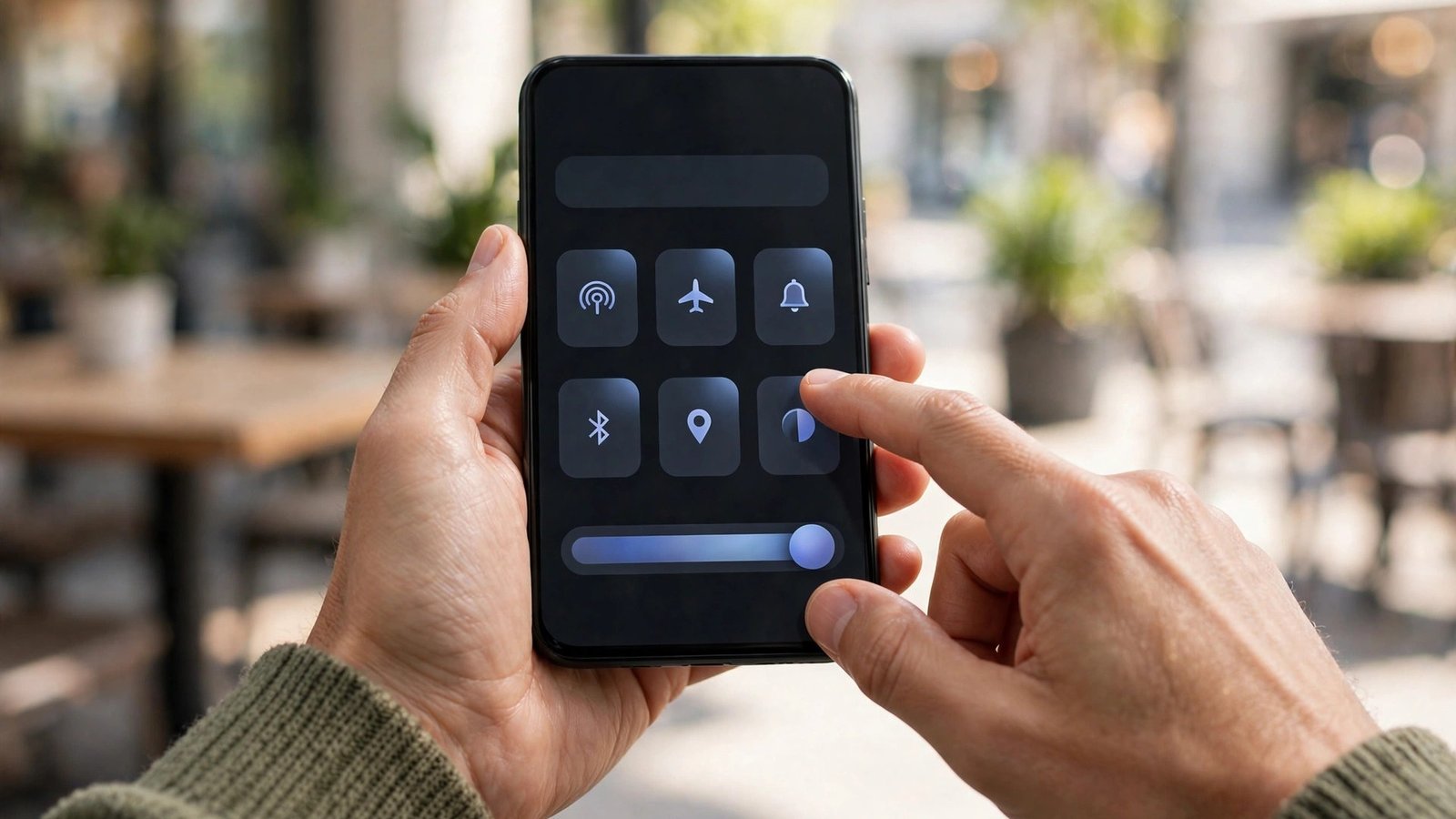
The One-Tap Method: The Quick Settings Tile
For occasional use — a dark room, a movie theater, a red-eye flight — the Quick Settings tile is fastest:
- Swipe down twice from the top of the screen to open the full Quick Settings panel.
- Tap the Dark theme tile.
If the tile is missing, tap the pencil/edit icon in the panel, find the Dark theme tile in the hidden section, and drag it into your active tiles. While you are customizing the home screen, our roundup of apps to organize apps on Android can help tidy the drawer you are about to spend more time looking at.
Themed Icons: The Finishing Touch
Dark surfaces with bright, mismatched icons still look half-finished. Pixel’s answer is themed icons, part of Material You:
- Long-press an empty area of the home screen and tap Wallpaper & style (or open Settings > Wallpaper & style).
- Scroll to Themed icons and turn it on.
Supported app icons are redrawn in a simple two-tone style that matches your wallpaper’s color palette, and they invert correctly in dark mode, so the whole home screen looks designed rather than assembled. Not every app supports themed icons yet, so a few colorful holdouts may remain — support has steadily improved with each Android release.
Complete the Look: Wallpaper, Colors, and Widgets
Dark mode is only half of the Pixel’s Material You design. Because the system builds your color palette from your wallpaper, a dark theme layered over a bright, busy wallpaper can look mismatched — dark gray menus against a neon home screen. For the most cohesive result, pair dark mode with a darker wallpaper (Google’s built-in wallpaper collections include plenty), and the accent colors the system extracts will shift to deeper tones that sit comfortably on the dark surfaces.
A few more details reward attention. The At a Glance widget and the persistent search bar follow the launcher theme automatically, so no separate fiddling is needed. Third-party widgets are the wildcard: well-maintained widgets offer their own light/dark variants or follow the system, but older widgets may stay bright white no matter what you set — if one glaring widget ruins your midnight home screen, check its in-app settings for a theme option, or replace it with a widget that respects the system theme. Finally, remember that dark theme also reaches beyond the launcher into Google apps that follow the system setting, so Gmail, Calendar, and Photos will match your drawer without individual setup.
Why Isn’t My Pixel Launcher Going Dark?
Work through these checks in order:
- Dark theme is actually on. It sounds obvious, but a schedule can turn it off in the morning — check Settings > Display & touch > Dark theme before troubleshooting anything else.
- You are using a different launcher. If you installed Nova, Lawnchair, or another home-screen app, you are not looking at the Pixel Launcher at all, and your launcher has its own theme settings. Switch back to Pixel Launcher in Settings > Apps > Default apps > Home app to test.
- A very old Pixel with wallpaper theming. Pixel 2/3-era software chose the launcher theme from the wallpaper. On those devices, picking a darker wallpaper nudges the drawer dark, and updating the phone as far as it will go adds proper controls.
- The launcher needs a nudge. Restarting the phone clears most one-off glitches. If a single Pixel surface (like the Discover feed) looks wrong, toggling dark theme off and on usually fixes it — as does swapping the color palette in Wallpaper & style, a known cure for themed icons getting their colors reversed after updates.
- Battery saver interplay. On some versions, battery saver forces dark theme on; if your launcher seems to switch themes “by itself” at low battery, that is the likely cause.
Does Dark Mode Save Battery on a Pixel?
On Pixel phones with OLED screens — which is most of them — yes, though the size of the win depends on brightness. OLED pixels draw little to no power displaying black and dark gray, so a dark app drawer, dark menus, and dark-themed apps genuinely reduce screen power draw, especially at the high brightness levels used outdoors. At typical indoor brightness the savings are modest but real. The bigger benefit for most people is comfort: less glare at night and less eye strain in dark rooms. For a broader collection of battery and display tweaks, see our Android tips and tricks guide.
Frequently Asked Questions
Is there a dark mode setting inside the Pixel Launcher itself?
No. The Pixel Launcher has no theme toggle of its own; it follows the system dark theme in Settings > Display & touch > Dark theme. Long-pressing the home screen leads to Wallpaper & style, which controls colors and themed icons, not light/dark mode.
Will dark mode make all my apps dark too?
Most well-maintained apps follow the system theme and will switch automatically. Some apps have their own in-app theme setting that overrides the system, and a few older apps stay light no matter what.
Why does my app drawer keep switching back to light?
Almost always a schedule: sunset-to-sunrise or a custom schedule turning dark theme off in the morning, or battery saver toggling it. Check both places.
Do themed icons work with third-party launchers?
The Wallpaper & style themed icons feature is part of the Pixel experience. Third-party launchers typically offer their own icon-pack support instead.
Does dark mode work on the Pixel Tablet and Pixel Fold?
Yes. The same Display & touch > Dark theme setting applies, and the launcher surfaces on those devices follow it the same way.
Conclusion
Pixel Launcher dark mode is really system dark mode wearing a launcher hat — and that is good news, because one switch darkens your app drawer, search bar, Discover feed, and settings all at once. Turn it on in Display & touch settings, set a sunset schedule so you never think about it again, add themed icons for a finished look, and your Pixel’s home screen will be as easy on your eyes at midnight as it is at noon.
