
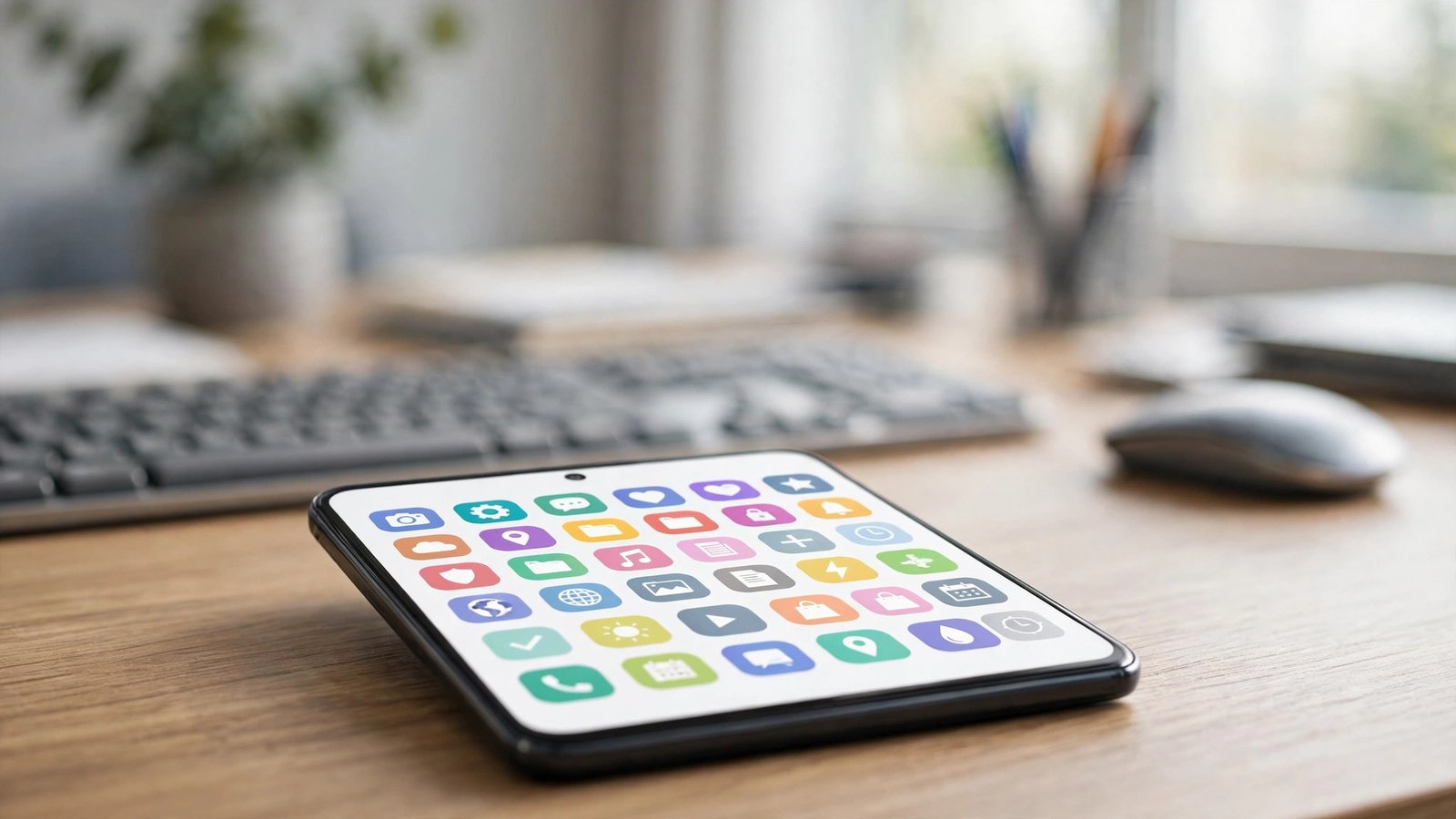
Android gives you more freedom than any other phone platform, including the freedom to make a glorious mess. If your home screens are a scattered archive of every install since 2022, the right app to organize apps android setups can fix it in an afternoon, and the best fixes start with tools already on your phone.
This guide covers the built-in options first, then the launcher apps that genuinely earn their install, then the folder and automation tricks that keep things tidy for good.
Start With the Organizer You Already Have: The App Drawer
Before downloading anything, meet the app drawer. Swipe up on most Android home screens and you get an alphabetical list of everything installed, usually with a search bar at the top. That search bar is your fastest organizer: type two letters, tap, done.
Many stock launchers (the software behind your home screen) also include quiet superpowers:
- Folders on the home screen: drag one icon onto another on Samsung, Pixel, and most other brands.
- App suggestions: Pixel’s launcher surfaces your likely next app at the top of the drawer based on time and routine.
- Hide apps: Samsung’s One UI lets you hide apps from the drawer entirely (Home screen settings, then Hide apps), ideal for carrier bloatware.
- Disable and archive: in Settings, then Apps, you can disable pre-installed apps you cannot delete, and newer Android versions can auto-archive apps you rarely open while keeping their data.
For a surprising number of people, the drawer plus two or three folders is the whole answer, no download required. The same philosophy powers the iPhone approach in our guide to the best way to organize iphone apps, just with different tools.
Two built-in habits make the drawer even stronger. First, train yourself to search instead of scroll: after a week of typing two letters to open everything, the scroll habit disappears on its own. Second, on Samsung phones, use the drawer’s favorites row, which lets you pin a strip of your most-used apps at the top of the drawer where your thumb lands first.

The Launcher Apps That Earn Their Place
If your stock launcher feels limiting, a replacement launcher is the most powerful kind of organizer app, because it controls your entire home screen. Three stand out.
Nova Launcher is the veteran’s choice, available from its official home at novalauncher.com. It adds a customizable app drawer with tabs and folders inside the drawer itself, icon gestures (swipe up on an icon to launch something else), and fine control over grids and spacing. The free version covers most needs; Prime unlocks the gesture tricks.
Microsoft Launcher suits anyone living in the Microsoft ecosystem, with a clean drawer, a useful daily feed of calendar and tasks, and easy wallpaper rotation. Niagara Launcher takes the opposite philosophy: a minimalist alphabetical list as your entire home screen, beloved by people who want zero visual noise.
Whichever you pick, give it a week. Launcher-hopping every two days is how organizing projects die.
Samsung owners have one more in-house option before going third-party: Good Lock, Samsung’s official customization suite from the Galaxy Store. Its Home Up module lets you reshape the app drawer (including a vertical list layout), adjust folders, and fine-tune the home screen far beyond the stock settings. It is free, it is made by Samsung itself, and for Galaxy users it delivers half of what people install launchers for, without replacing anything.
Folders, Widgets, and Shortcuts That Do the Sorting for You
A dedicated folder approach works inside any launcher. The trick, as with the alphabetical trick in our guide to how to arrange apps alphabetically android, is naming folders by action, not app type:
- Pay — bank, wallet, payment apps
- Go — maps, rideshare, airline, transit
- Watch — streaming and video
- Work — email, chat, documents
- Play — games
Widgets pull their weight too. A calendar widget, a notes widget, and a media widget on your main screen mean three fewer icons you need in prime position. And do not overlook app shortcuts: long-press most icons for quick actions (compose email, new note, scan a code), which often removes the need for a separate utility app entirely.
Organizer Apps for Special Jobs
A few standalone tools solve problems launchers do not:
- App drawer organizers inside launchers like Nova’s drawer groups let you create tabs (Social, Tools, Games) without touching your home screen.
- Notification organizers such as Android’s built-in notification history and conversation bubbles keep chat apps from scattering your attention, which is organization for your time rather than your icons.
- Storage cleaners with app managers, like the Files by Google app, sort your installed apps by size and last used, making the delete-or-keep decision painless. This is the safest way to find forgotten installs from the full world of android applications out there.
Avoid the many “app organizer” downloads with ads and vague promises from unknown developers. Organizing apps, by their nature, ask for broad visibility into what you install; that trust should go only to established names.
One more category deserves a mention: automation. Samsung’s Modes and Routines can change which apps notify you (or even which home screen you see) based on time, place, or activity, such as a Work routine on weekday mornings. It is organization that responds to your life instead of sitting still, and once set up it needs no attention at all.
Icon Packs and Themes: The Finishing Touch
Once the structure is sane, icon packs are the fun layer. Android lets you change how every icon looks, and a single consistent pack instantly makes a home screen look designed rather than accumulated. Nova Launcher and Samsung’s Theme Park (inside Good Lock) both apply packs system-wide for your home screen, and thousands of packs exist on Google Play, from minimal line icons to playful retro sets.
Two warnings from experience. First, some apps will not have a matching icon in smaller packs, which creates a visual odd-one-out; bigger, actively maintained packs cover more apps. Second, resist mixing packs. One coherent set, even a plain one, always looks better than a collage of three styles competing for attention.
This is also the moment to pick a wallpaper that leaves icons readable: busy photos behind busy icons is the fastest route back to visual chaos. A soft gradient or a blurred landscape keeps the whole system feeling calm.
A 20-Minute Cleanup Routine That Sticks
- Dump everything into the drawer. Long-press and remove every home screen icon except your true daily drivers: phone, messages, camera, browser, maps, bank.
- Create four to six action folders using the names that match your life, and file the weekly apps into them on the second screen.
- Add one widget stack or two widgets to the first screen for glanceable info.
- Delete with prejudice. In Settings, then Apps, sort by last used. Anything untouched in three months goes. Reinstalling takes a minute; the clutter costs you every day.
- Set a probation rule. New installs live only in the drawer for two weeks. If you keep opening one, promote it to a folder or the home screen.
Mistakes to Avoid
- Installing three launchers “to test.” You will spend the week in settings menus instead of using your phone. Pick one, live with it, then judge.
- Organizing alphabetically by hand. The drawer already does this automatically. Manual alphabetic grids collapse the first time you install anything new.
- Hiding apps you need in emergencies. Your insurer, roadside assistance, and authenticator belong where a stressed future-you can find them in seconds.
- Granting organizer apps scary permissions. A launcher needs to see your apps, not your contacts, messages, and location. Read permission requests critically.
- Backing up nothing before a big change. Most launchers, Nova included, can export your layout to a file. Make that backup before switching launchers or phones, and your careful filing survives the move instead of dying with the old device.
Frequently Asked Questions
What is the best app to organize apps on Android?
For most people, Nova Launcher is the strongest all-round pick thanks to its drawer tabs, folders, and gestures. If you want minimalism, Niagara Launcher; if you live in Microsoft’s ecosystem, Microsoft Launcher.
Can I organize Android apps without a launcher?
Yes. The built-in app drawer’s search, home screen folders, app hiding, and disabling cover the basics on Samsung, Pixel, and most other brands without any download at all.
How do I sort my app drawer alphabetically?
Most drawers are alphabetical by default. In Samsung’s One UI, open the drawer, tap the menu in the search bar, and choose Sort, then Alphabetical order, if a custom order was set earlier.
Will a new launcher delete my apps or data?
No. A launcher only changes how your home screen and drawer look. Your apps, accounts, and data stay untouched, and uninstalling the launcher returns you to the stock layout.
How many folders should I create?
Four to six, named by action. More folders than that recreates the mess one level deeper, and you will stop filing new apps into them.
Conclusion
Organizing an Android phone is less about finding a magic app and more about choosing one system and letting it work: drawer for everything, a few honest folders for the weekly apps, one strong launcher if you need more control, and search as your everyday shortcut. Set it up properly once and your phone stays effortlessly findable for years to come.
Start smaller if you need to: tonight, just clear your main home screen down to the apps you used today, and let the drawer hold everything else for now. That single simple change, which takes barely three minutes, is the one people consistently say made their whole phone feel new again.
