
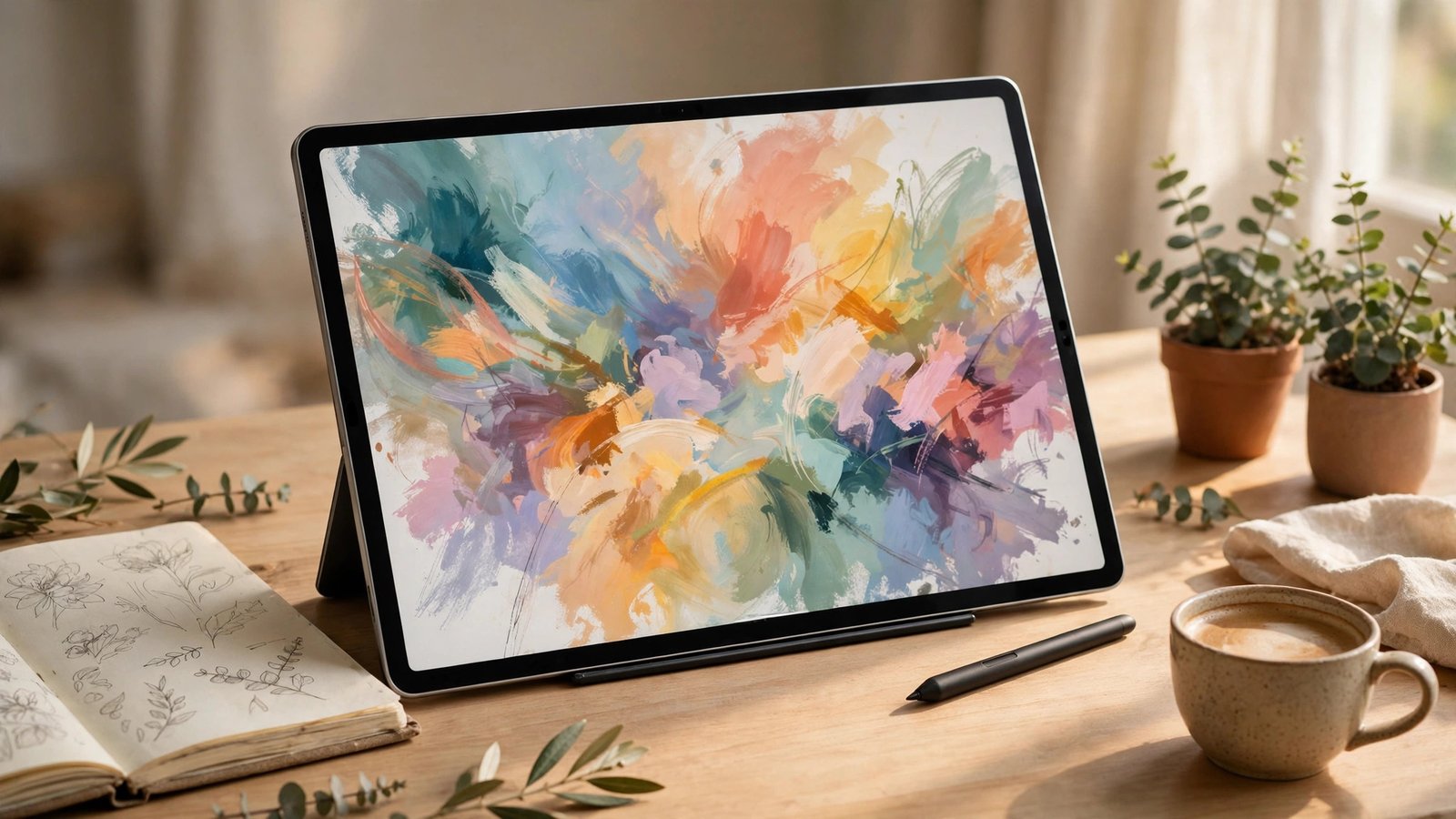
A tablet lives or dies by its apps. The big screen is wonderful for drawing, reading, note-taking, and watching shows, but only if the software takes advantage of it. Finding a good application for ipad users is really about finding apps that were designed for the larger display and, ideally, for the Apple Pencil, not just stretched-out phone apps.
This guide covers the strongest picks by category: creativity, productivity, entertainment, and learning. At the end, we also look across the aisle at the best options for Android tablets, because plenty of households have one of each.
What Makes an App Great on iPad?
Before the list, a quick filter. A genuinely good iPad app usually does at least three of these things well:
- Uses the full screen with split view or a real two-pane layout instead of empty margins.
- Supports Apple Pencil with low-latency drawing or handwriting where it makes sense.
- Works with keyboards and trackpads, including common shortcuts, so the iPad can double as a light laptop.
- Syncs with the iPhone and Mac versions, so your work follows you between devices.
Apps that meet these tests feel native to the tablet. Apps that fail them feel like a phone app wearing a Halloween costume two sizes too big. Apple’s own iPad lineup pages show the hardware side of this; the apps below are where the experience really comes together.
Cool Apps for iPad: Drawing, Design, and Video
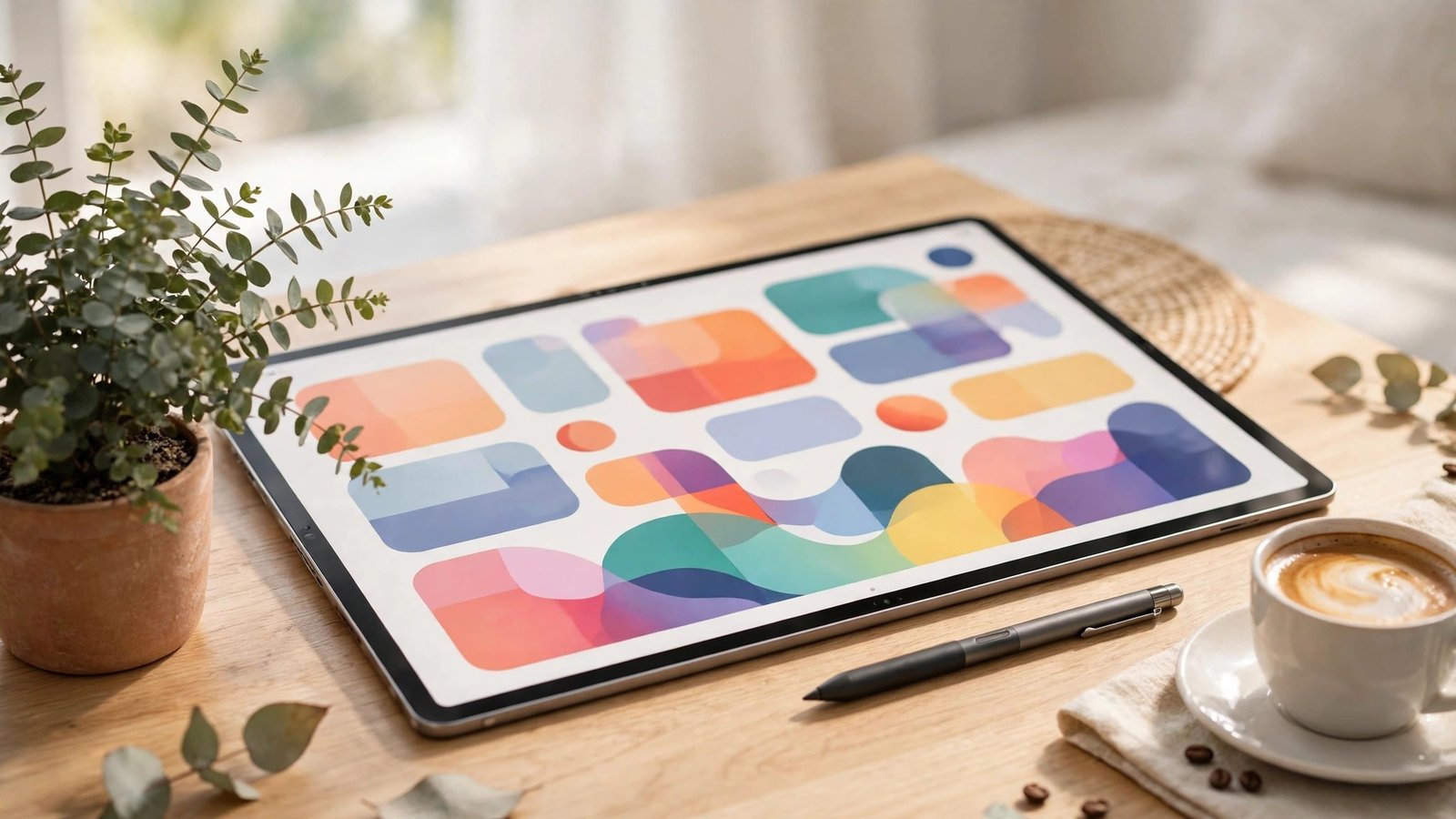
Creativity is where the tablet shines brightest, and the cool apps for ipad in this space are famous for a reason. Procreate is the one-time-purchase drawing app that professionals and hobbyists both swear by: hundreds of brushes, a clean canvas-first interface, and animation tools that belie its low price.
Photographers should look at Affinity Photo and Adobe Lightroom. Affinity offers desktop-class editing for a one-time fee, while Lightroom is the pick if you already live in Adobe’s cloud and want edits to sync everywhere.
Video editors get two standouts. LumaFusion is the long-running favorite for serious editing on a tablet, with multi-track timelines and proper export controls. CapCut is the simpler, free option that is perfect for social clips. For music, Apple’s own GarageBand remains astonishingly capable for a free app, and it is already on most iPads waiting to be opened.
Musicians who outgrow GarageBand step up to apps like Cubasis or FL Studio Mobile, both of which bring a proper digital audio workstation layout to the big screen. On the design side, Canva deserves its popularity for fast posters, presentations, and social graphics, while Adobe Fresco blends raster and vector drawing in a way illustrators genuinely enjoy. The pattern across all of these is the same: the iPad versions are not companions to a “real” app somewhere else. They are the real app.
If your tablet doubles as a family device, round out the creative side with the cross-platform must have apps that cover messaging, streaming, and everyday basics.
Apps for Tablet Users Who Work and Study
Productivity is where apps for tablet setups earn their keep. For handwriting, GoodNotes and Notability are the two heavyweight champions: both turn the Apple Pencil into a proper notebook with searchable handwriting, PDF annotation, and audio recording in Notability’s case. Students overwhelmingly pick one of these two.
Documents and spreadsheets are covered by Microsoft 365 (Word, Excel, PowerPoint) and Google Docs, both of which work well with a keyboard attached. For bigger writing projects, Scrivener and Ulysses are beloved by authors, while Notion handles notes, wikis, and project tracking for teams and individuals.
Two utilities deserve a mention. Documents by Readdle is a superb file manager that handles downloads, cloud drives, and media in one place. And Duet Display can turn your iPad into a second screen for a Mac or PC, which is one of those tricks that feels like magic the first time it works. Mac owners can do the same trick free with Apple’s built-in Sidecar feature.
Presenters and teachers should add Keynote to the list. It is free, it makes genuinely handsome slides, and presenting from an iPad with a small remote is a far lighter travel kit than a laptop and charger. Pair it with the Apple Pencil annotations during a live talk and audiences notice the difference.
Entertainment and Reading Apps That Love a Big Screen
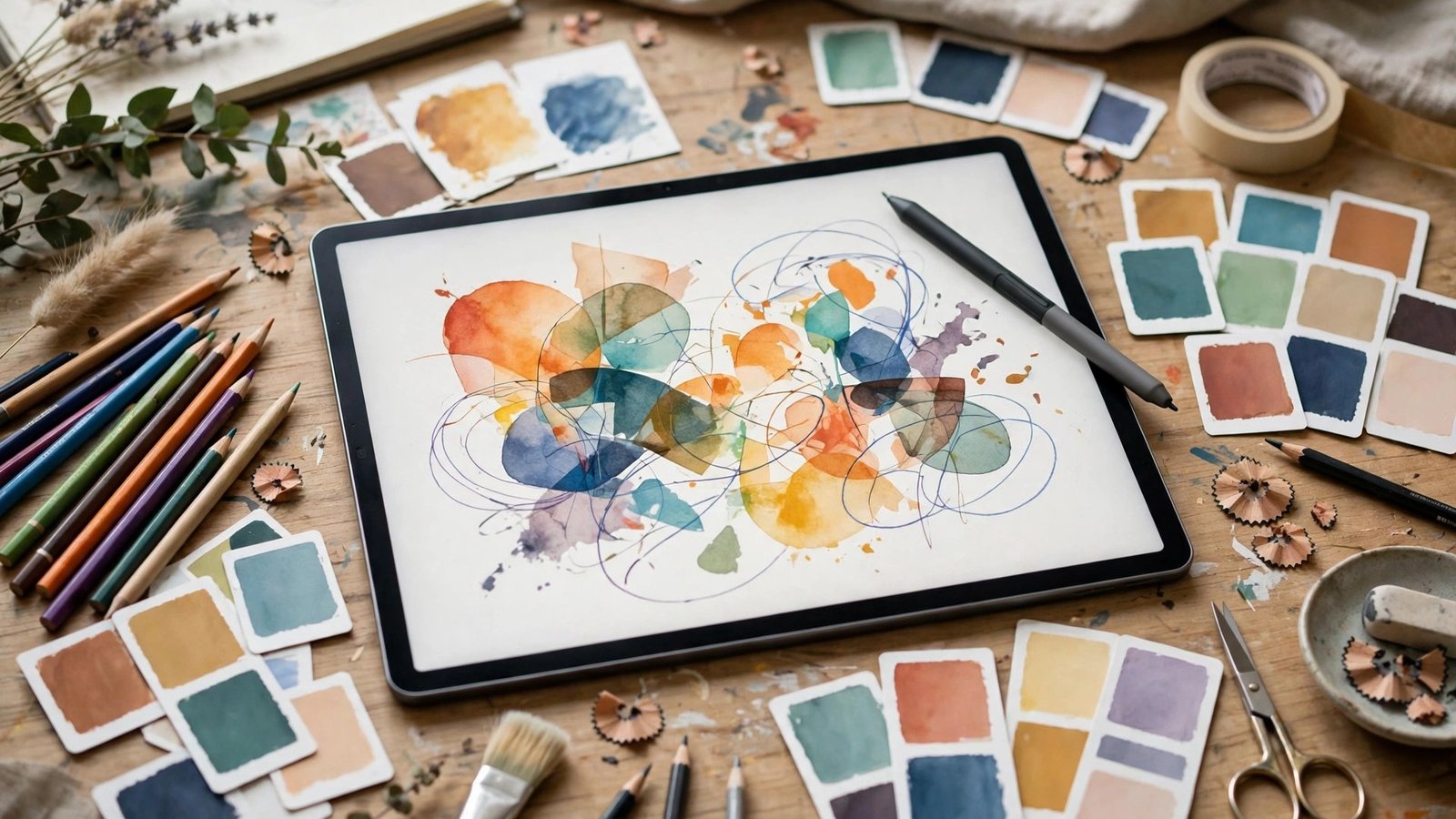
The iPad may be the best reading device Apple makes. Apple Books and the Kindle app both look great on it, and the Kindle app matters even for Apple loyalists because Amazon’s book catalog is enormous. News readers like Apple News and Flipboard also benefit from the magazine-sized display.
Streaming is straightforward: Netflix, YouTube, Disney+, and Apple TV+ all support downloads for flights and trips, which is where a tablet beats a laptop. Gamers should look at Apple Arcade titles built for touch, and strategy favorites like Civilization VI and Stardew Valley prove the iPad can handle deep, hours-long games.
Magazines and long-form reading are the sleeper hit of the big screen. A Sunday-morning hour with a news app and a coffee feels completely different on a tablet than on a phone, because articles appear at something close to print size. If your iPad mostly lives on the couch, lean into that: one great reading app and one great streaming app will cover ninety percent of its life, and both are free to start.
If you are choosing apps for a child, Apple’s Screen Time settings plus the curated Kids section of the App Store are the safest starting point, and most of the picks in our guide to must have apps for iphone families translate directly to a kid-friendly iPad setup.
Recommended Apps for Android Tablet Owners
Windows-shopping between ecosystems is normal, so here are the recommended apps for android tablet owners that mirror this guide. For drawing, Infinite Painter and Sketchbook are the strongest Pencil-free equivalents, and Samsung tablets with an S Pen pair beautifully with Samsung Notes for handwriting.
Productivity on Android tablets leans on Google’s own stack: Google Docs, Keep, and Drive, plus Microsoft 365, which is fully featured on Android now. Video editors get CapCut and YouCut, and readers get the same Kindle app and Google Play Books.
Hardware makes a difference here: a tablet bundled with a stylus changes what is possible, so it is worth pairing this list with our walkthrough on how to set up android tablet devices properly from day one.
Accessories That Unlock Even More Apps
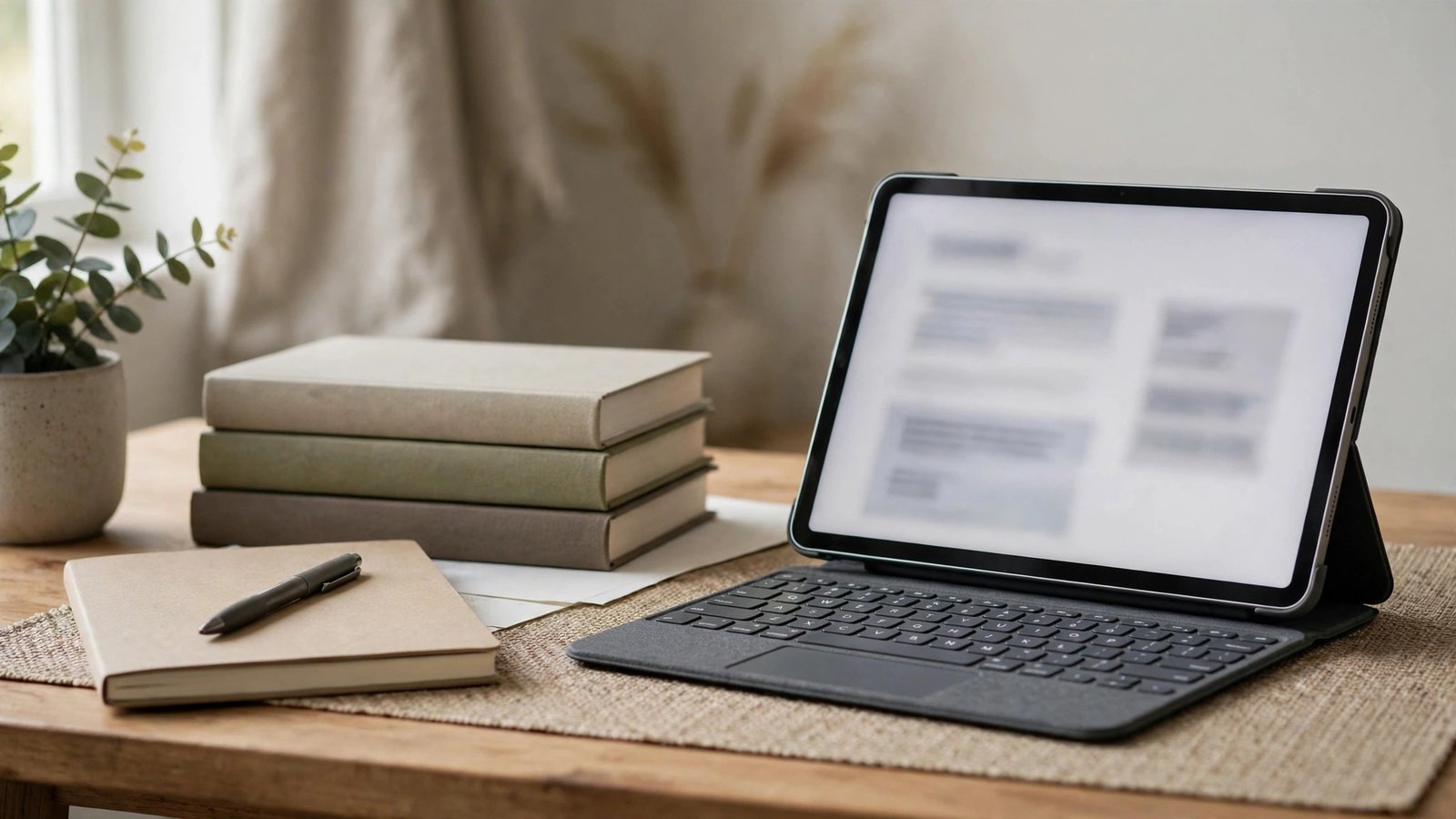
A few inexpensive accessories multiply what these apps can do, and they are worth knowing about before you buy software. A keyboard case turns the office and writing apps above into a near-laptop, and it is the single upgrade iPad owners rate highest. A simple stand makes recipe apps in the kitchen and video calls at a desk dramatically more pleasant.
The Apple Pencil has already been mentioned, but its real value is breadth: the same stylus that sketches in Procreate signs contracts in a PDF app, annotates slides in Keynote, and scribbles margin notes in a reading app. If you buy one accessory with your tablet, that is the one, and it is the reason so many of the apps in this guide reserve their best features for it.
Mistakes to Avoid When Downloading Tablet Apps
- Paying twice for the same job. Many people buy three note apps in a month. Try the free tier first and commit to one.
- Ignoring the “Designed for iPad” signal. Check screenshots in the App Store listing; phone-shaped screenshots in an iPad listing are a red flag.
- Forgetting the Pencil test. If an app claims handwriting support, test palm rejection and latency before the refund window closes.
- Skipping storage math. Creative apps and downloaded shows eat space fast. Offload media to cloud storage before a trip, not during it.
- Buying the phone version twice. Some developers sell iPhone and iPad editions separately. Check the listing for universal support before paying for an app you may already own.
Frequently Asked Questions
What is the single best iPad app to buy first?
It depends on your main use, but Procreate for artists and GoodNotes for students are the two most common first purchases, and both are one-time fees rather than subscriptions.
Are iPad apps more expensive than iPhone apps?
Sometimes. Tablet-optimized pro apps often cost more than casual phone apps, but many excellent options are free, and most iPhone purchases carry over to iPad at no extra cost.
Can I use the same apps on iPad and Android tablet?
The big names, like Netflix, Kindle, Microsoft 365, and CapCut, exist on both. Platform exclusives like Procreate are the exception, and they usually have a close Android alternative.
Do I need an Apple Pencil to enjoy these apps?
No. The Pencil unlocks the best drawing and handwriting apps, but media, reading, games, and office apps all work perfectly well with touch and a keyboard.
How do I find apps designed for the big screen?
In the App Store, open the Apps tab and look for iPad collections, or check any listing’s screenshots and information section, which states iPad compatibility and features.
Conclusion
The right tablet apps turn a nice screen into a sketchbook, a notebook, a cinema, and a light work machine. Start with one strong pick per category, favor apps that respect the big display and the Pencil, and your tablet will quickly become the device you reach for most at home.
A sensible first-week shopping list looks like this: one creative app matched to your hobby, one notebook or document app, one reading app, and your streaming service of choice. Four installs, all heavily used, will teach you more about what your tablet is really for than forty speculative downloads ever will, and every later purchase you make will be smarter for it.
